

Engineering
Flashing a Xiaomi Phone on macOS and Linux Without Windows in 2026
I got tired of borrowing a Windows laptop every time I had to flash a Xiaomi phone. So I wrote a script that does it from macOS and Linux.
8 min read
Flashing a Xiaomi Phone on macOS and Linux Without Windows
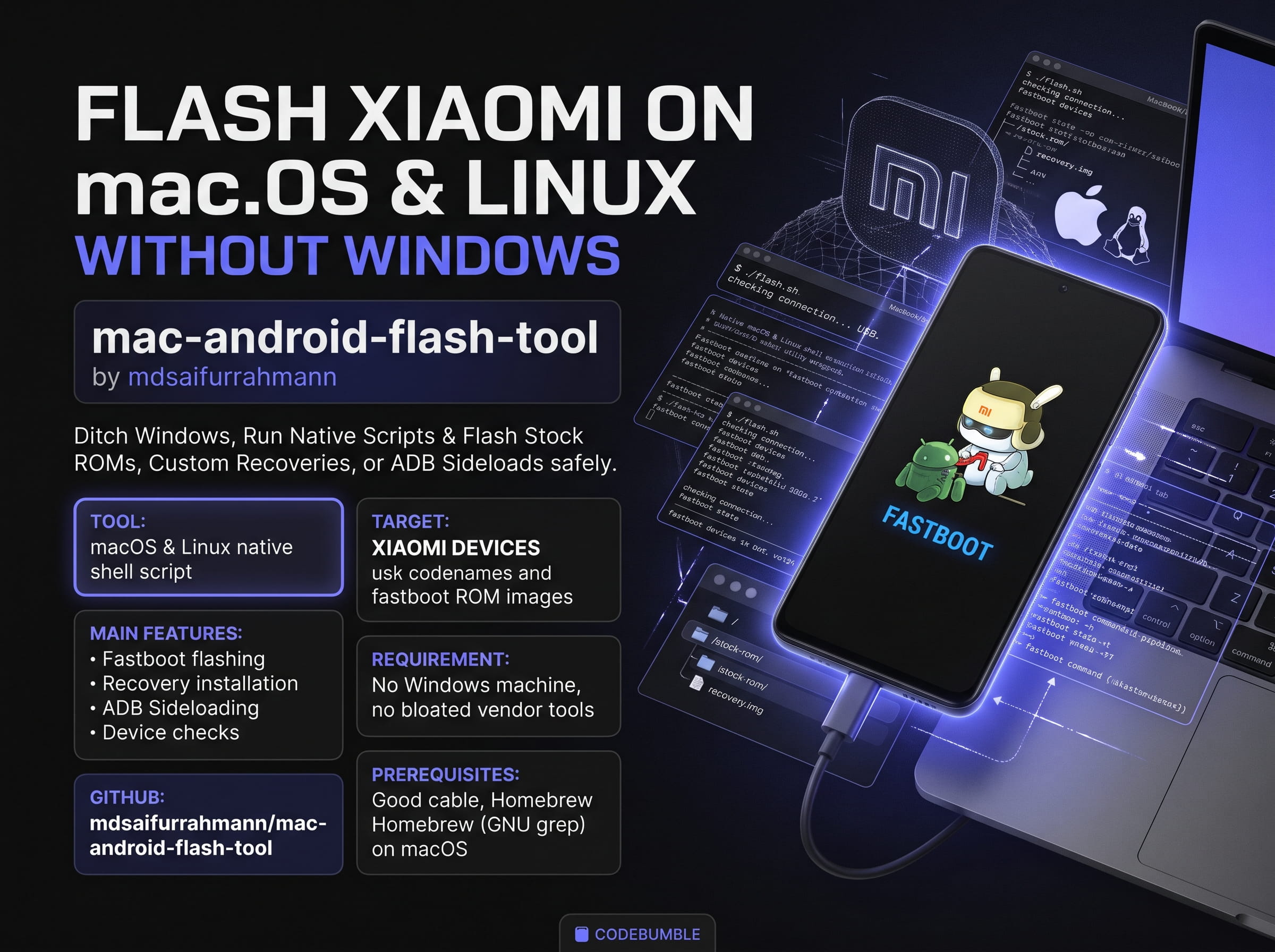
It was close to midnight, and the phone on the desk was showing a boot logo and nothing else.
The developer had flashed a custom ROM on it a few hours earlier. It was a normal experiment, and this one had gone wrong. The phone wouldn't boot, and it had to go back to stock.
The next step was clear, and it was not a welcome one. Every guide said the same thing: find a Windows machine, install the vendor flashing tool, and follow the wizard. The developer's daily machine was a Mac, and the servers ran Linux. The only Windows laptop in the house was in another room, with a dead battery and a pending update.
He sat looking at the phone and thought: this is just ADB and fastboot. Why does this need Windows?
That question is how the project started.
The problem with "just use Windows"
A lot of Android flashing material assumes Windows. Official tools and forum tutorials do, and so do the screenshots. People who work on macOS or Linux end up with a pile of half-remembered commands and a bad feeling every time they press Enter.
The commands themselves are not hard. Flashing is a sequence of small, precise steps, and the problem is remembering them in the right order late at night with a dead phone on the desk. Which image goes to which partition? Should the ROM be sideloaded or flashed? Is the device in fastboot or in recovery? What does fastboot devices say right now?
Each of those is a place to make a mistake. Some mistakes cost five minutes, and others cost a phone.
The developer wanted one script that did four things:
- Run natively on macOS and Linux.
- Wrap the commands he kept retyping.
- Show a menu, so he only had to choose what he wanted.
- Keep the file layout simple enough to remember.

What was built
The result is mac-android-flash-tool, a flashing tool for Xiaomi devices that works on macOS and on Linux-based operating systems.
Using it is meant to be boring:
- Clone the repository.
- Put the files in the right folders.
- Run the script and pick an option.
The script handles the rest.
From the menu, a user can run the everyday commands without typing them from memory:
adb devicesto check that the phone is visible over ADB.fastboot devicesto check that it is visible in fastboot mode.adb sideloadto install a ROM.zip.- Flash
vbmeta.img. - Flash a custom recovery image.
- Flash a stock fastboot ROM.
Checking the connection first matters more than it sounds. Most failed flashes come from a bad cable or a device that isn't in the mode the user thinks it is. The two device-check options confirm what the computer sees before anything on the phone changes.
Setting up on macOS
Linux is the easy case, because the tools behave the way most guides expect. macOS needs one extra step.
The grep that ships with macOS is not GNU grep. It doesn't accept the same options as the Linux version, so scripts that rely on GNU behaviour can fail or give odd results. The fix is to install the GNU version with Homebrew and put it first in the path:
brew install grep
PATH="/opt/homebrew/opt/grep/libexec/gnubin:$PATH"
That change lasts only for the current terminal session. To make it permanent, add the same PATH line to .zshrc or .bashrc, then open a new terminal.
On the first run, this cost the developer a good half hour. It is now in the README and in this post so that nobody else has to repeat it.
Flashing a custom ROM
This is the workflow most used during experiments, so it was made as short as possible.
To flash a recovery, put the recovery.img file in the root directory of the project, then choose the recovery option from the menu.
To install a ROM with ADB sideload, put the ROM .zip file in the root folder. Boot the phone into recovery, choose sideload on the phone, and pick the sideload option in the script.
There is no config file to edit and no path to type. The user drops the file in the folder, and the script finds it.
This design means the user doesn't have to trust their memory. If the file is in the folder and the phone is connected, the option works. If one of those is missing, the problem shows up before anything is written to the device.
Going back to stock
This is the case that started the project, so it got the most attention.
To restore a Xiaomi phone to stock, the user needs the official fastboot ROM for the exact device. It can be downloaded from the Xiaomi Firmware Updater website. The user picks the download type, then searches for the device by name or codename.
Once the compressed file is downloaded, it gets extracted into the stock-rom folder of the project.
That's all the preparation. The script handles the rest.
The download must be for the right device and not a similar-looking model. Flashing the wrong firmware is the most reliable way to turn a recoverable situation into a permanent one, so the codename is worth checking twice.
Back to that midnight phone
That night, the developer cloned the repository onto his Mac. He downloaded the stock fastboot ROM for the phone and extracted it into stock-rom. He held the volume-down and power buttons to enter fastboot mode, connected the cable, and ran the script.
The first thing he chose was the fastboot device check. The phone showed up in the list, which meant the cable and the mode were both fine. He then chose the stock ROM option and watched the output scroll past.
After that, he did what the README says. He went and got a cup of coffee.
When he came back, the phone had rebooted and was showing the first-time setup screen. It was a clean install, and no Windows machine had been involved.
Before you try it
Flashing carries real risk, so a few honest notes:
- Back up your data. Unlocking and flashing can erase the phone.
- Match files to the device. Use the exact ROM, recovery and
vbmetafor your model. - Use a good cable and a direct port. Hubs and cheap cables cause strange failures.
- Check the device first. Run the ADB or fastboot device check before any flash.
- Read the output. If a step fails, stop and work out why before continuing.
The tool saves typing and reduces slips. It doesn't replace understanding what is being written to the phone, and each user remains responsible for their own device.
Why it lives in the open
The developer, who publishes as mdsaifurrahmann on GitHub, put the project online because he is not the only person with a Mac or a Linux box and a Xiaomi phone. The people with the most experience here often know the commands by heart and have never written them down in a form a beginner can follow.
A script is a form of documentation. It records the order of the steps, and it makes the correct path the easy one.
Anyone who tries it and finds something broken, or a device that behaves differently, can open an issue. Improvements are welcome as pull requests. The most useful contributions are usually small: a note about a specific model, a better error message, or a missing safety check.
Try it yourself
The project is here: mac-android-flash-tool on GitHub.
Clone it, put the files in place, pick an option, and let it run. While it does, go and make a cup of coffee.
Frequently Asked Questions
Does this tool work on Windows?
No. It is built for macOS and Linux-based operating systems. Windows users have the vendor's own tools available.
Which devices does it support?
It is made for Xiaomi devices. Always use the ROM, recovery and vbmeta files that match your exact model and codename.
Why do I need to install GNU grep on macOS?
The grep that comes with macOS doesn't accept the same options as the GNU/Linux version, which the installation scripts rely on. Install it with brew install grep, then add PATH="/opt/homebrew/opt/grep/libexec/gnubin:$PATH" to your path.
How do I make the grep change permanent?
Add the same PATH line to your .zshrc or .bashrc and open a new terminal. Without that, the change lasts only for the current session.
Where do I put my files?
- Put
recovery.imgin the root directory to flash a recovery. - Put the ROM
.zipin the root folder to use ADB sideload. - Extract the stock fastboot ROM into the
stock-romfolder.
Where do I download the stock ROM?
Download the fastboot file for your device from the Xiaomi Firmware Updater website. Select the download type, then search by device name or codename.
What can I do from the menu?
You can run adb devices, fastboot devices, adb sideload, flash vbmeta.img, flash a recovery, and flash a stock ROM, among other options.
My phone isn't detected. What should I check?
Run the ADB or fastboot device check first. Then confirm that the phone is in the right mode, and try a different cable or a direct USB port instead of a hub.
Will flashing erase my data?
It can. Back up everything important before you flash, especially when restoring a stock ROM.
Is it safe to use?
The tool reduces typing mistakes, but flashing always carries risk. Wrong firmware can leave a phone unbootable, so check the codename twice. You are responsible for your own device.
Can I contribute or report a problem?
Yes. Open an issue or send a pull request on the GitHub repository.